logo
MSFF2026
logo
MovieSense

How to Watch

Stream your favourite films and lessons on any device — here's how to get started.

How to watch your favourite films

▶

Apple TV

Apple TV
  1. 1
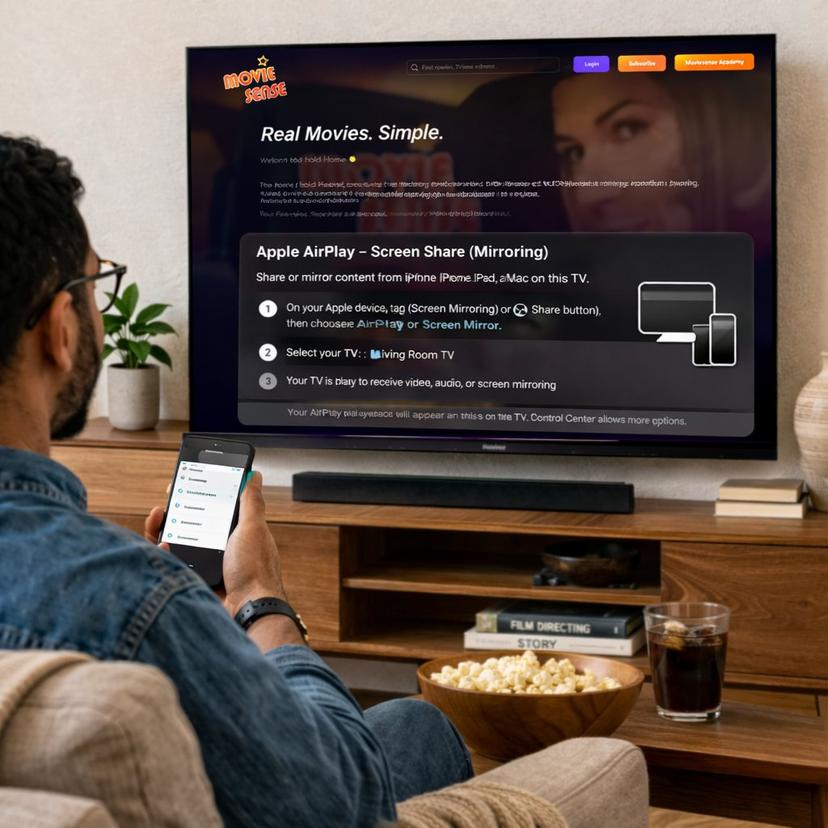
    Make sure your iPhone or iPad and Apple TV are on the same Wi-Fi network.
  2. 2
    Open MovieSense on your iPhone or iPad in Safari or your preferred browser and sign in.
  3. 3
    Open Control Center on your iPhone or iPad and tap Screen Mirroring.
  4. 4
    Select your Apple TV, enter the AirPlay code if prompted, and start watching.
🔥

Amazon Fire Stick

Amazon Fire Stick
  1. 1
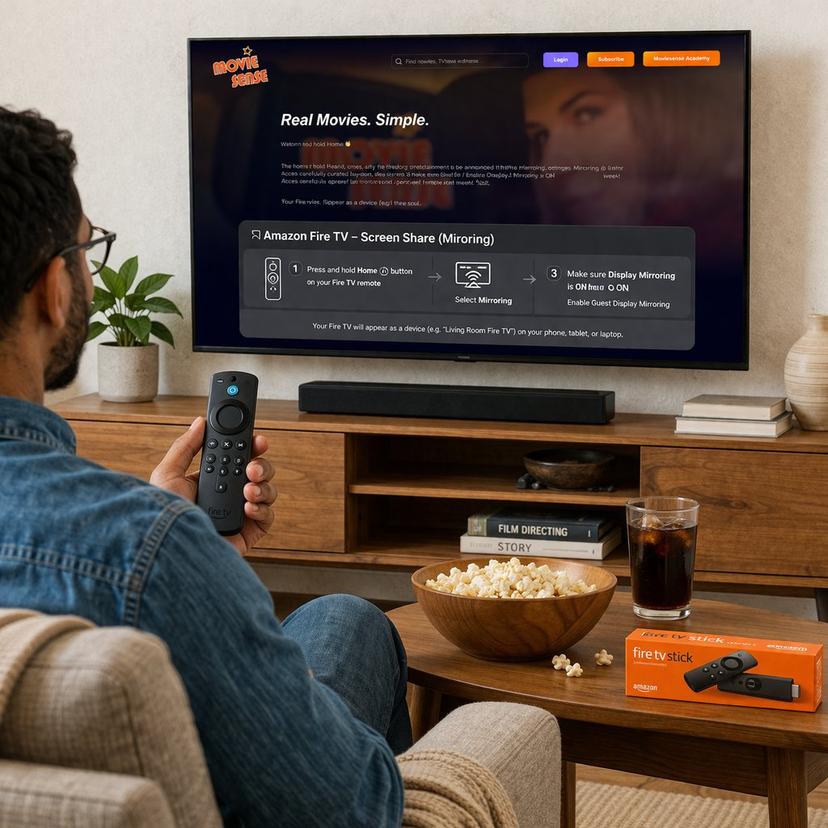
    Go to the Fire TV home screen.
  2. 2
    Open the Silk Browser.
  3. 3
    Go to moviesense.com and sign in.
  4. 4
    Select your film or lesson and enjoy.
📺

Samsung Smart TV

Samsung Smart TV
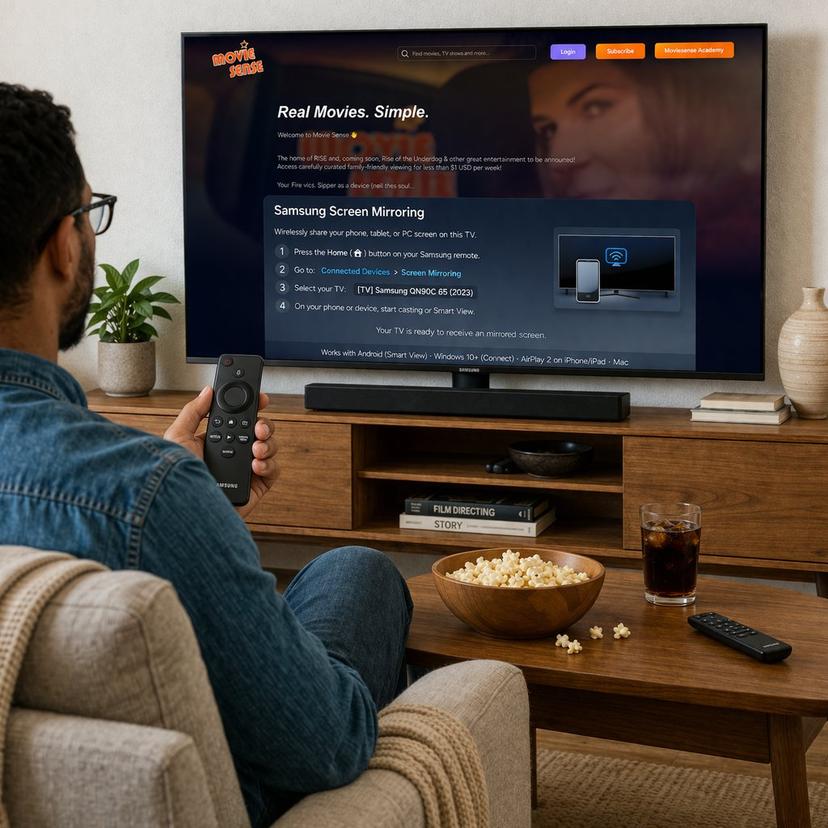
  1. 1
    Press the Home or Smart TV button on your Samsung remote.
  2. 2
    Open the built-in Web Browser / Internet app.
  3. 3
    Go to moviesense.com and sign in.
  4. 4
    Select your film or lesson and enjoy.
📡

LG Smart TV

LG Smart TV
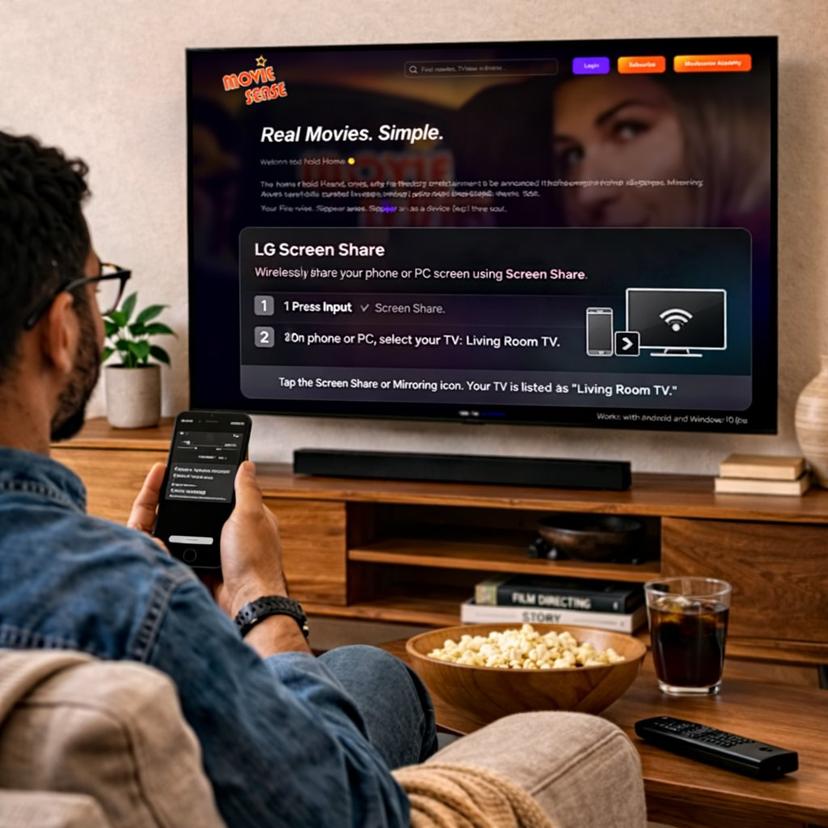
  1. 1
    Press the Home button on your LG remote.
  2. 2
    Open the Web Browser app from the home screen.
  3. 3
    Go to moviesense.com and sign in.
  4. 4
    Select your film or lesson and enjoy.
📲

Chromecast

Chromecast
  1. 1
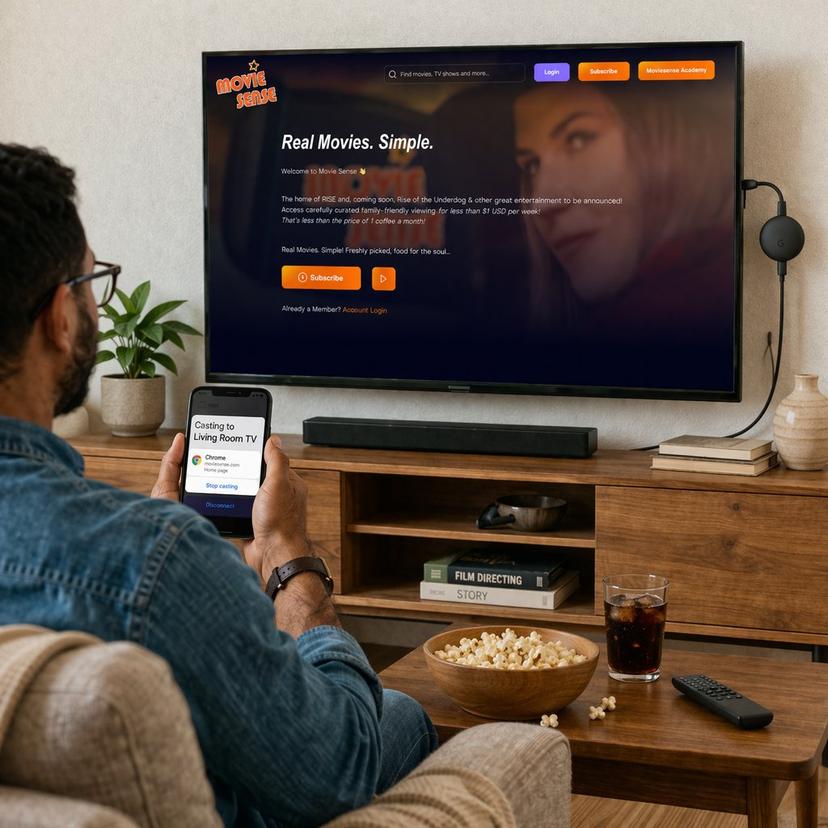
    Make sure your Chromecast and your computer are on the same Wi-Fi network.
  2. 2
    Open Chrome on your computer and go to moviesense.com.
  3. 3
    Sign in and start the video you want to watch.
  4. 4
    Open the Chrome menu and choose Cast, then select your Chromecast device.

Tip: Chromecast casting options can vary by phone, so desktop Chrome is the simplest support path.

📱

Mobile & Tablet

Mobile & Tablet
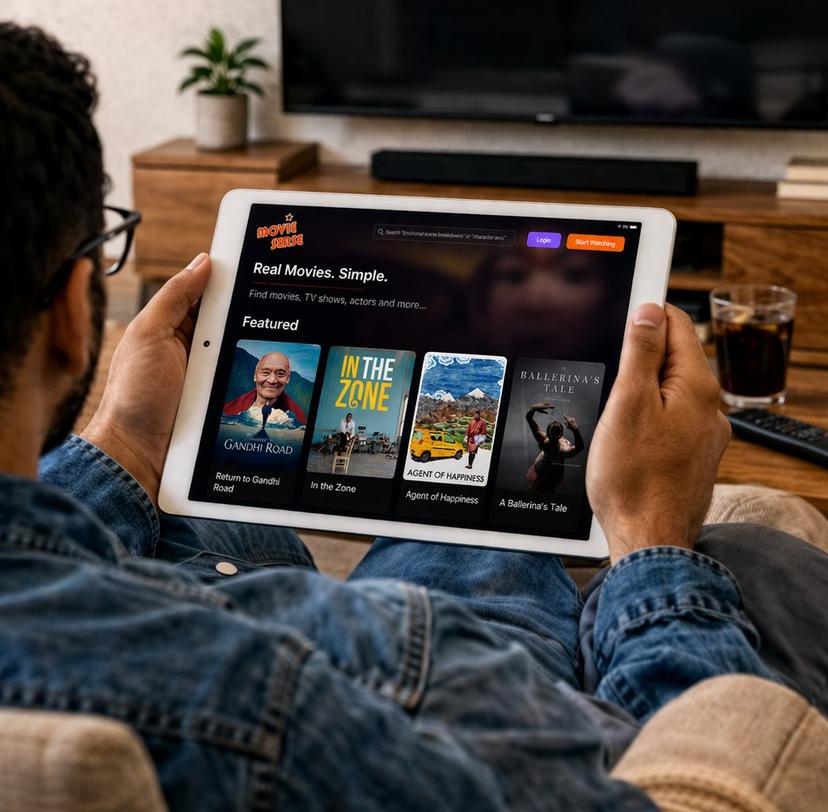
  1. 1
    Open Safari, Chrome, or your preferred browser.
  2. 2
    Go to moviesense.com and sign in.
  3. 3
    Select your film or lesson and enjoy.

Need Help?

Having trouble accessing your course? Our support team is here to help you get started with watching your acting lessons on any device.

Contact Support

Best Experience

For the smoothest playback, use a modern browser like Safari, Chrome, or Firefox on a stable internet connection.

Download for Offline

If downloadable lessons are available in your course area, save them in advance before travelling or watching on the go.

Multiple Devices

Your progress can continue across devices, so you can start on your TV and pick up later on your phone or tablet.